
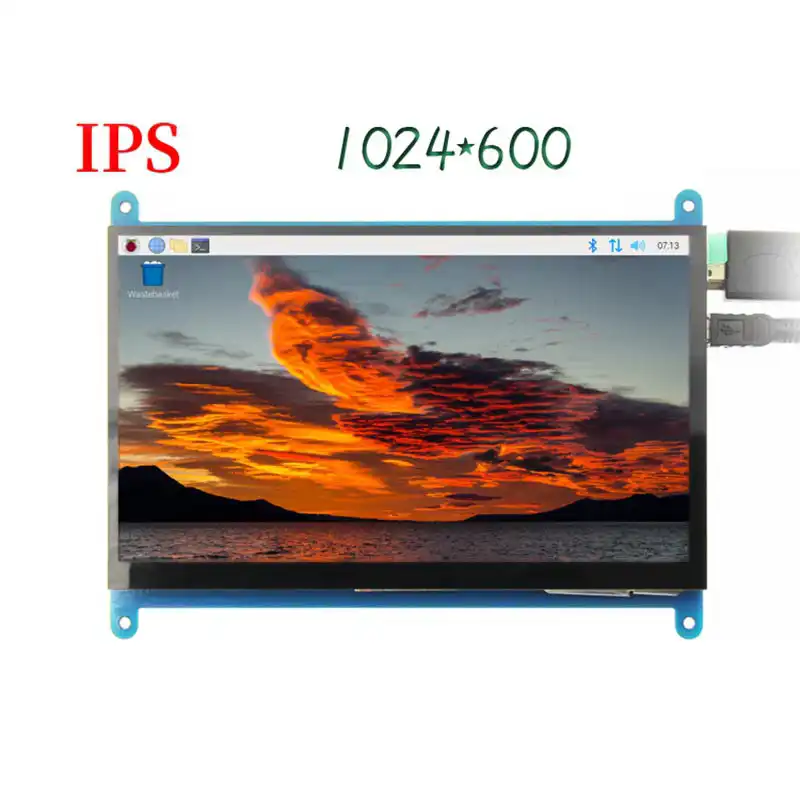
7 inch Lcd Screen Module, Raspberry Pi TFT Display
The screen module resolution:1024*600.
Packing list of the display module:
Product Description
- 7’’ standard display, 1024 × 600 Hardware resolution, Up to 1920×1080 software configuration resolution.
- Capacitive touch screen, maximum support 5 point touch
- Support backlight control alone, the backlight can be turned off to save power
- Support Raspberry Pi, BB Black, Banana Pi and other mainstream mini PC
- Can be used as general-purpose-use HDMI monitor, for example: connect with a computer HDMI as the sub-display
- Used as a raspberry pi display that supports Raspbian, Ubuntu, Kali-Linux, Kodi, win10 IOT, single-touch, free drive
- Work as a PC monitor, support win7, win8, win10 system 5 point touch (XP and older version system: single-point touch), free drive
- CE, RoHS certification
Product Parameters
- Size: 7.0 inch lcd tft screen
- SKU: MPI7002
- Resolution: 1024*600 (dots)
- Luminance(TYP):210Cd/m2
- Touch: five-point capacitive touch
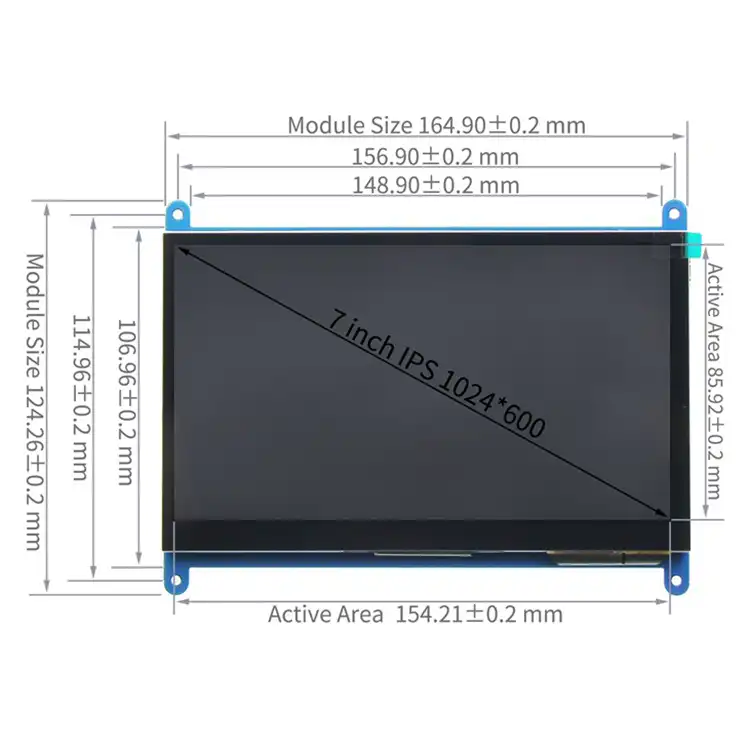
- Active Area: 154.21*85.92(mm)
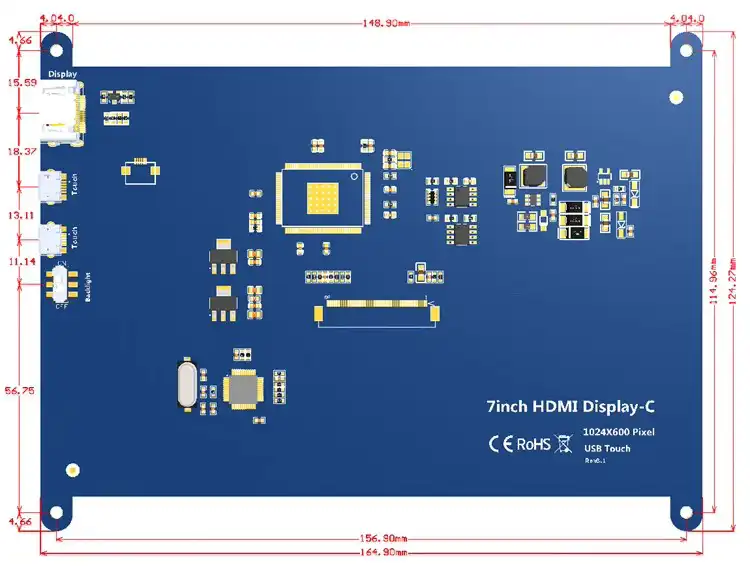
- Product Size: 164.9*124.27*15.15 (mm)
- Package Size: 211*150*53 (mm)
- Rough Weight(Package containing): 405 (g)
- Power Dissipation: 0.62A*5V @1024*600
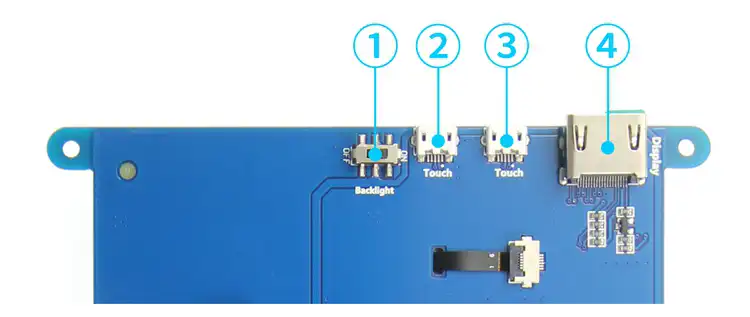
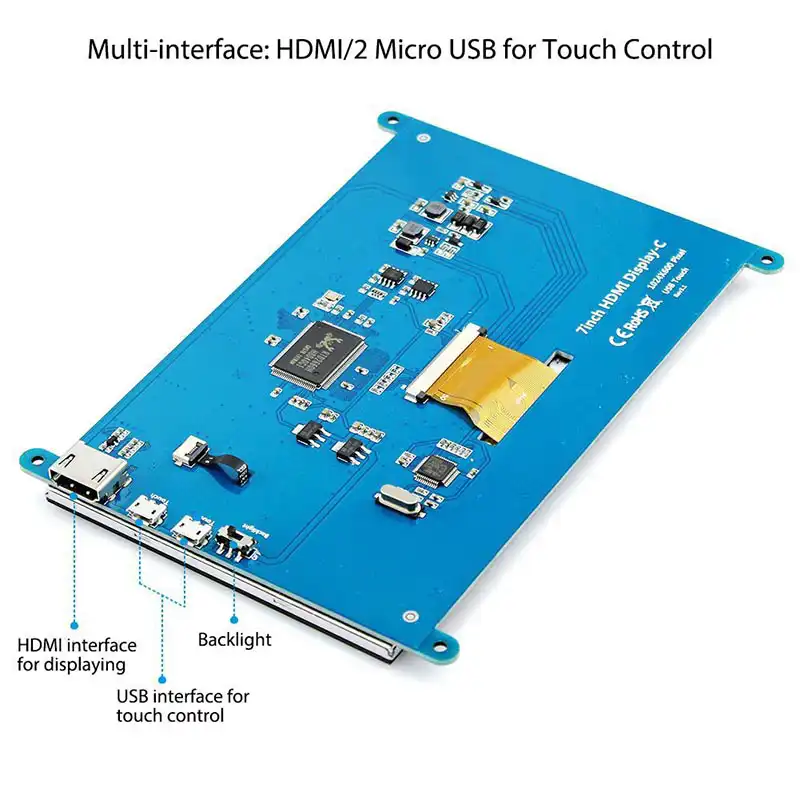
- ① Backlight Power switch: Controls the backlight turned on and off to save power.
- ②&③ USB Touch / power supply connector: For power supply and touch output, the functions of the both are the same, can just use one of them.
- ④ HDMI interface: For connecting motherboard and LCD monitor to HDMI transmission.
How to use this 7 inch lcd with Raspbian/Ubuntu Mate/Win10 IoT Core System
Step 1, Install Raspbian official image
- Download the latest image from the official download.
- Install the system according to the official tutorial steps.
Step 2, modify the “config.txt”
- After the programming of Step1 is completed, open the config.txt file of TF card root directory and
- add the following code at the end of the file, save and eject Micro SD Card safely:
max_usb_current=1
hdmi_force_hotplug=1
config_hdmi_boost=7
hdmi_group=2
hdmi_mode=87
hdmi_drive=1
display_rotate=0
hdmi_cvt 1024 600 60 6 0 0 0
Step 3, Drive the 7inch HDMI Display-B with the Raspberry Pi
- Insert the TF Card to Raspberry Pi, connect the Raspberry Pi and LCD by HDMI cable; connect USB cable to one of the four USB ports of Raspberry Pi,
- and connect the other end of the USB cable to the USB port of the LCD; then supply power to Raspberry Pi; after that if the display and touch both are OK,
- it means drive successfully (please use the full 2A for power supply).
How to use as PC monitor
- Connect the computer HDMI output signal to the LCD HDMI interface by using the HDMI cable
- Connect the 7 inch LCD’s USB Touch interface (Either of the two MicroUSB) to the USB port of the device
- If there are several monitors, please unplug other monitor connectors first, and use LCD as the only monitor for testing.
Looking for other specification,contact us to talk.
Know more about our company,view here.



Reviews
There are no reviews yet.